Draw to PromptPointing at what you want to change in a Gemini image
- Role
- Solo Designer
- Timeline
- 2 Weeks
- Type
- Class Concept
- Tools
- Figma, Claude MCP
Overview
Draw to Prompt is a concept for Gemini's mobile image flow. You mark the change on the image itself, and the sentence only has to carry the intent.
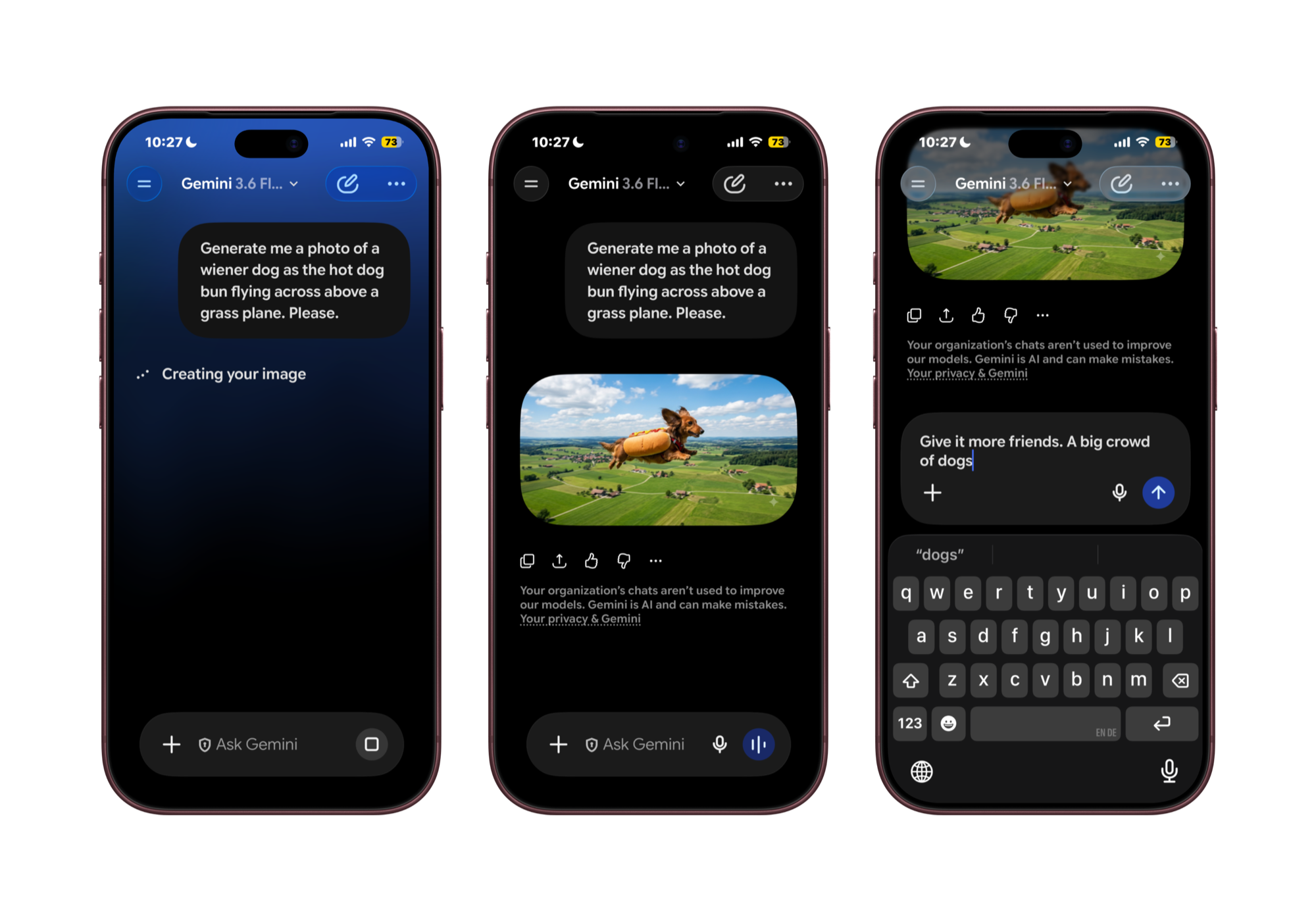
Gemini's image flow ends where editing begins. Once an image lands in the chat, the only tool for changing it is the same prompt bar you started with: type a sentence, wait, look again, type another. Each step is simple on its own, but none of them let you point.
My own attempt is below. ‘Give it more friends. A big crowd of dogs’ works, right up until the edit is about one dog, or one corner of the frame.
Problem
Refining a generated image still means describing it in words.
Actions stay hidden
Copy and save live in an action row below the image and inside a long-press menu that nothing announces. It works for users already fluent with the platform, and disappears for everyone else.
Language cannot point
Describing a location takes a large number of words and still does not transcribe what you are looking at on screen. This is Norman's Gulf of Execution: the user knows what they want, but the interface offers no means to express it directly.
Waiting goes quiet
Once the 'Creating your image' label clears, the placeholder is a static grey rectangle with no motion and no text.
Initial design
What if you could mark the change on the image, and let the sentence carry only the intent?
Pointing is how people indicate place everywhere else, and the sketch can hold the values that are awkward to verbalize: which object, where in the frame, how much of it. That leaves language doing the part it is actually good at, which is stating what should happen.
I explored this through Draw to Prompt, a concept that adds a drawing layer to the image itself rather than another field beneath it. Three steps, one rule: the user never has to describe what they are already looking at.
01 Mark
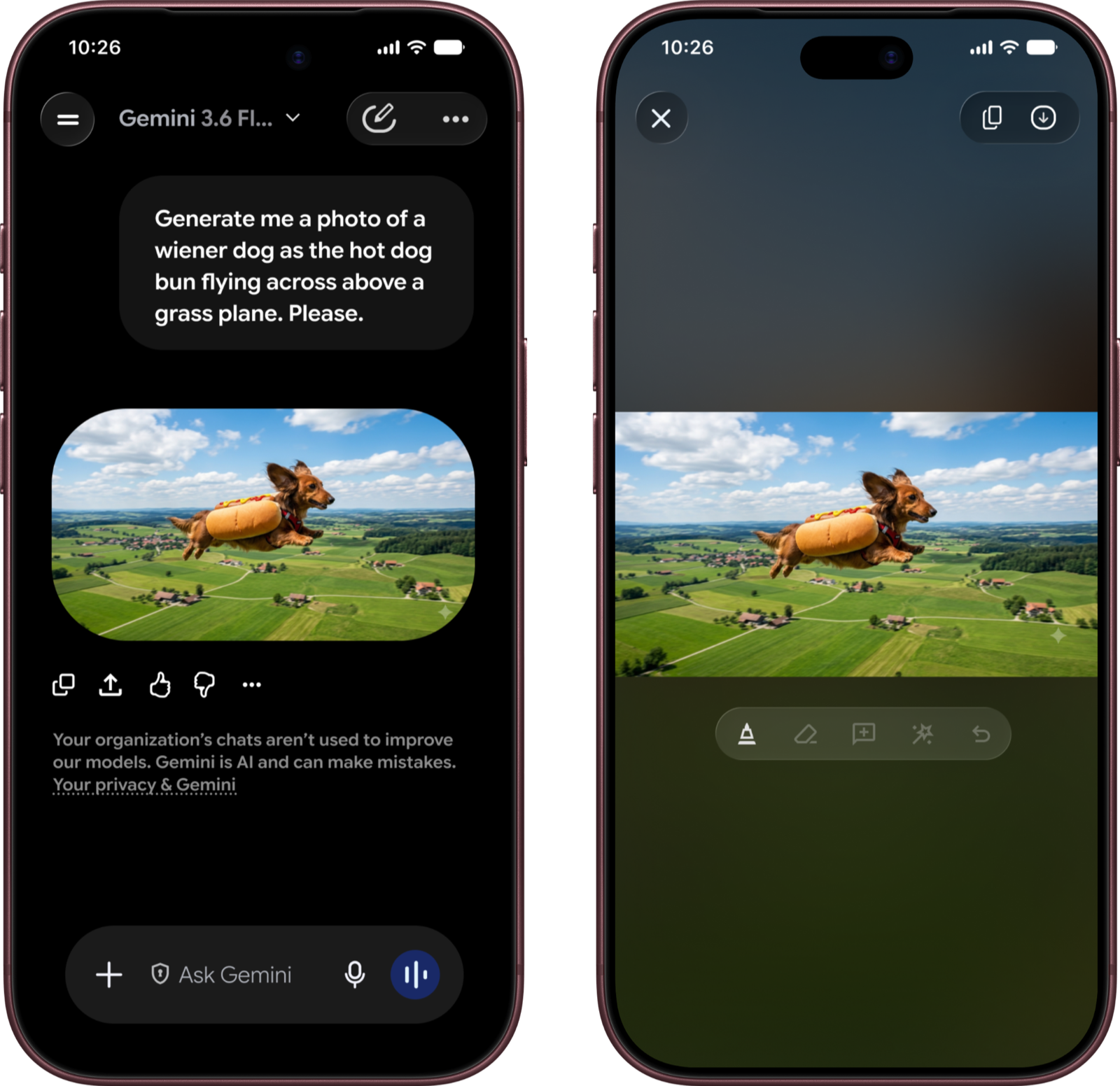
Tap the image into full screen and draw directly on it to mark what should change.
Opening the editor without leaving the chat
Tapping an image into the full-screen expanded view reveals a toolbar beneath it: annotate, erase, comment and prompt, magic-wand select, and undo. The tools sit with the image rather than in the conversation, so editing has its own context without becoming a separate destination.
Copy and save move up to the top right of this view, where they stay permanently visible instead of hiding behind a long press.
02 Prompt
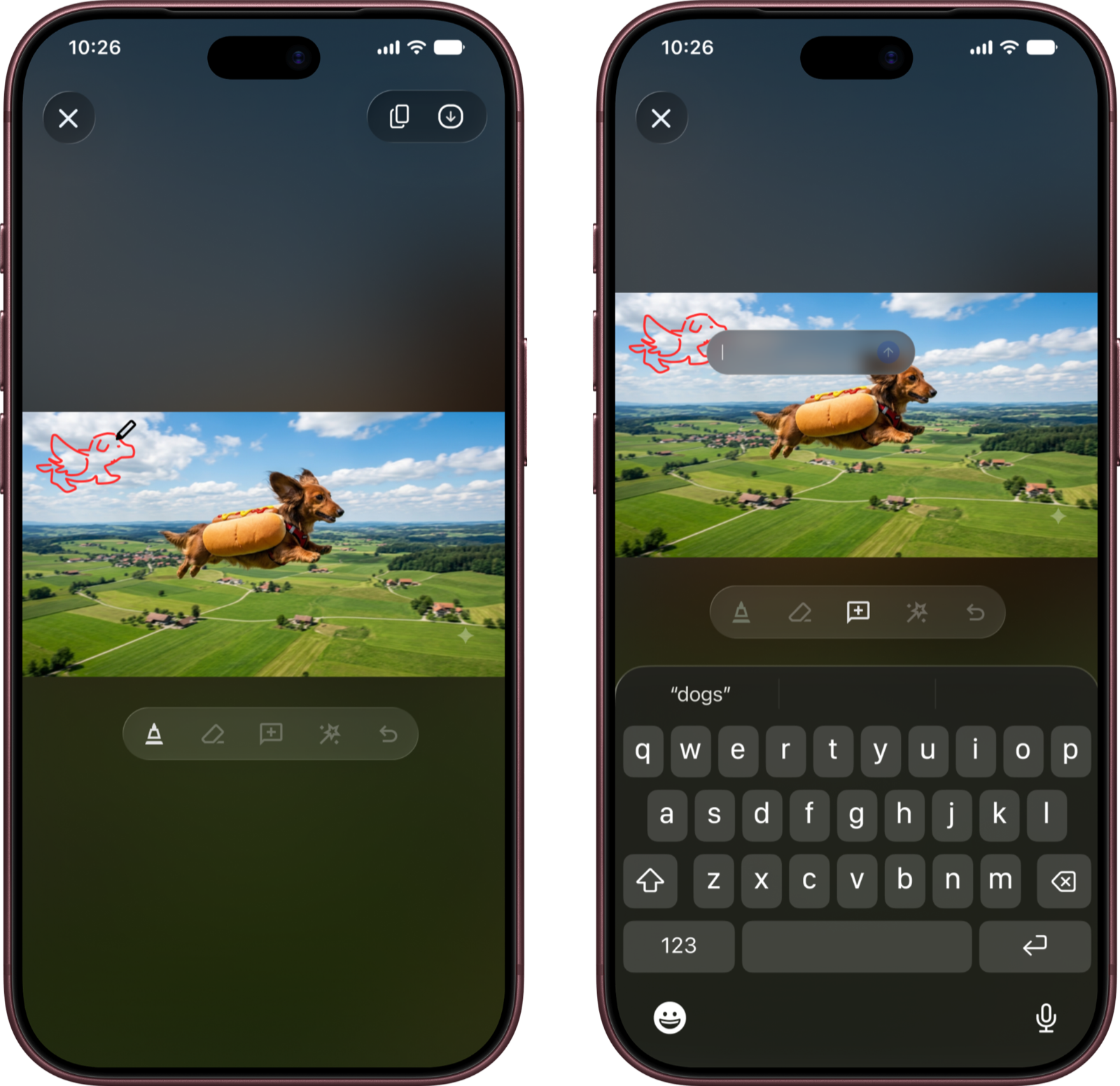
Finishing a stroke switches the tool to prompting, and an inline field anchors where the stroke ended.
Marking what changes
You take the brush and draw directly on the image to mark the region you want changed. In my version I drew around a single flying dog, which is a thing I could not have said in words without describing its position, size, and direction in the frame.
Composing the prompt while looking at the image, rather than from memory, is recognition over recall. The mark is the part of the instruction that language was carrying badly.
03 Refine
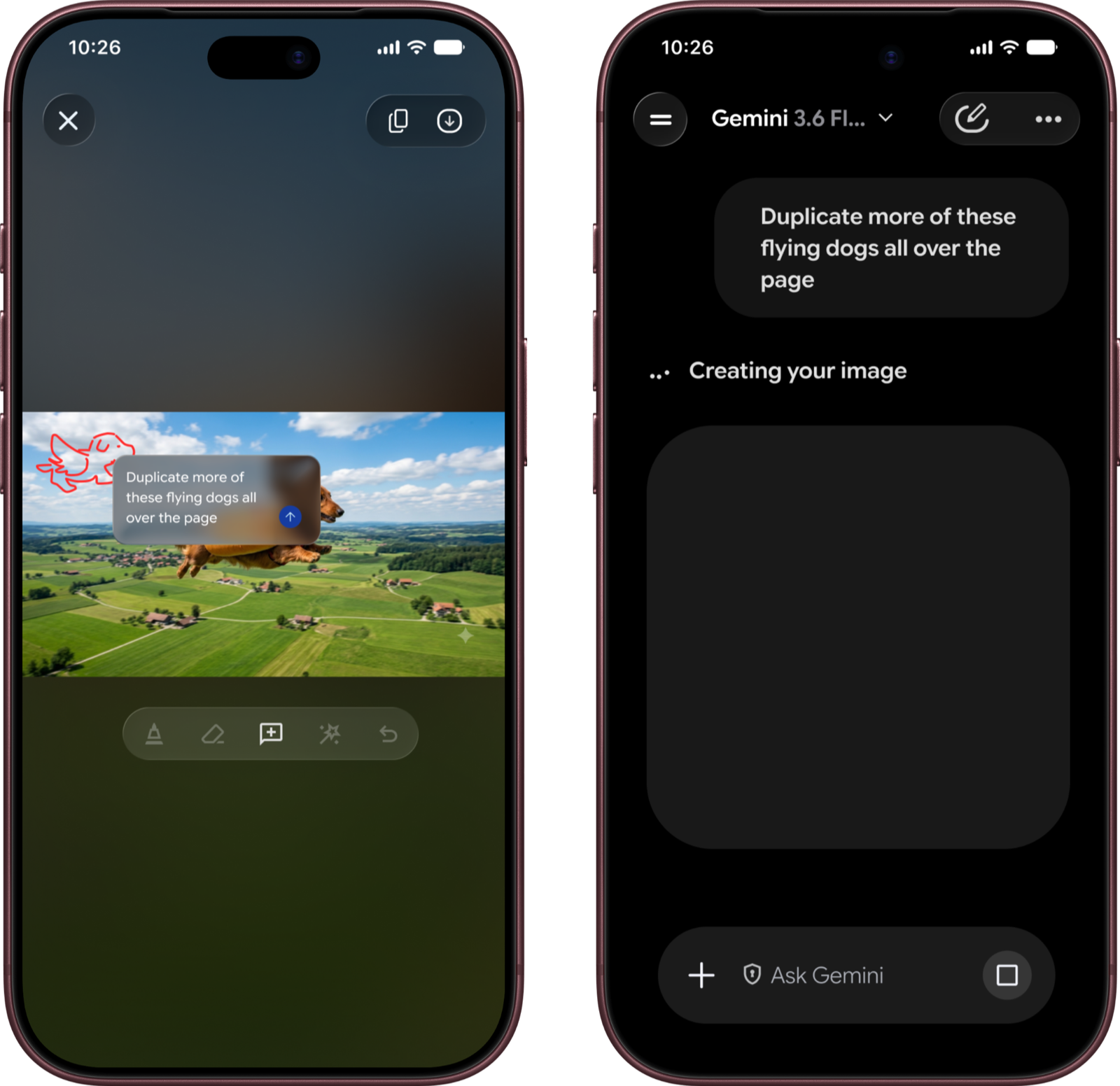
The sketch carries the location, so the sentence only has to carry the intent.
The handoff from drawing to prompting
On finishing a stroke, the tool auto-switches from draw to prompt and an inline prompt field anchors to where the cursor left off. In my instance the sentence was short because the sketch had already done the pointing: 'Duplicate more of these flying dogs all over the page.'
I went back and forth between making this switch automatic or explicit, since users pace lifting their pens differently and an automatic switch can read as assertive. I chose automatic because it removes a mode change at the exact moment the user's intent shifts, and because keeping the field at the stroke means no travel down to the bottom bar.
Iteration
V1 allowed one edit per turn, which made it hard to express many changes at once.
V2 lets every note stack up on the image and sends them together, so the model gets all the what and where in a single turn.
Final design
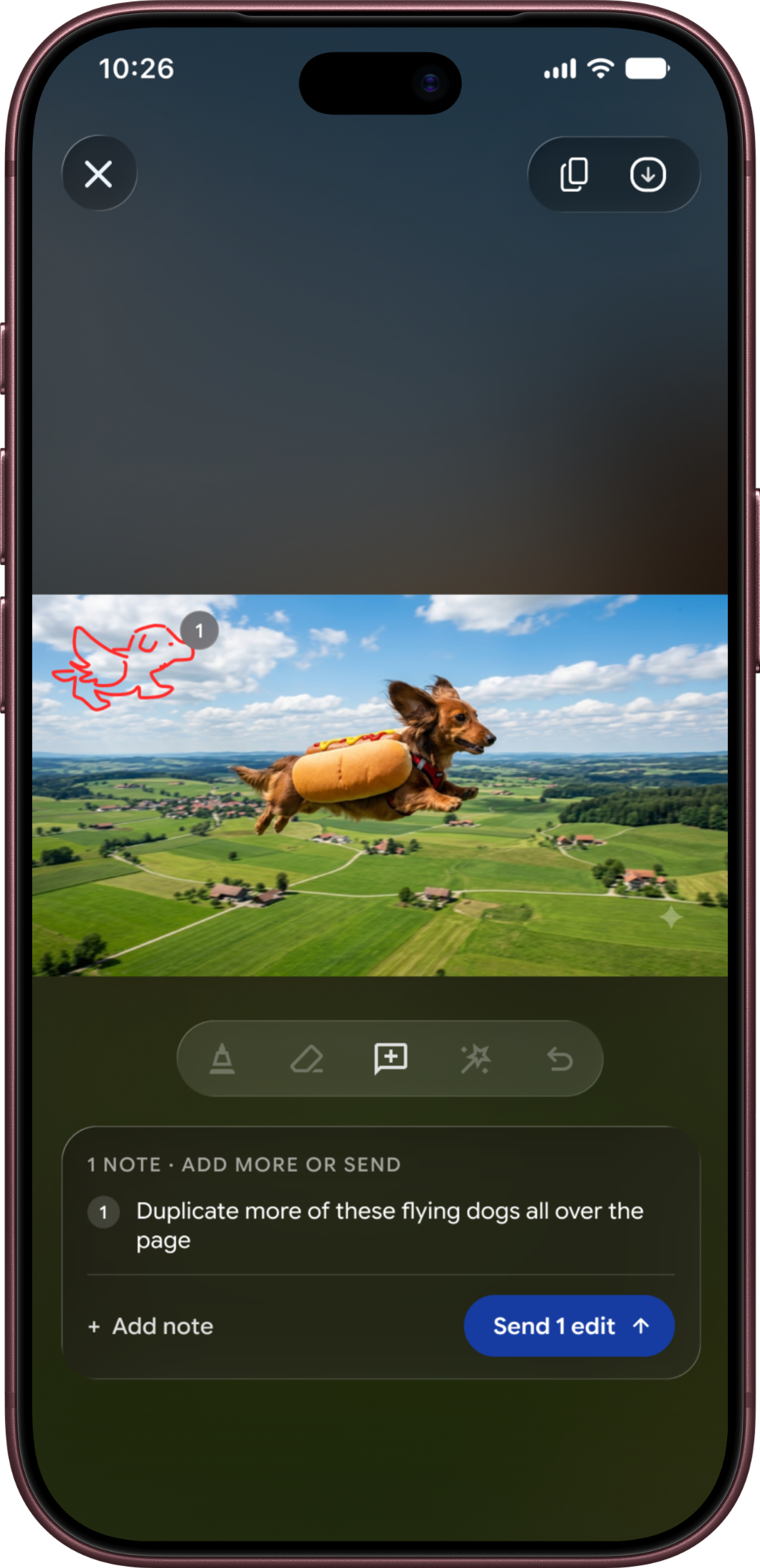
Pin a note
Each note becomes a numbered pin and a list item.
Mark another spot
Mark a new area; the first note stays put.
Review together
Check every note, then send them in one turn.
Kept in history
The marked-up image stays in your chat.
Reflection
Tradeoffs
The tricky thing about these redesigns is that fixing one issue tends to leave gaps elsewhere. Tapping into the image to reveal the tools is itself hard to discover, so this solution may have moved the discovery problem rather than eliminated it.
Auto-switching modes could also come as a surprise, and while sketching is ideal for spatially heavy prompts, a rough sketch could make the input ambiguous and the expectation harder to interpret. Both are the first things I would put in front of users.
Workflow
Claude (Opus 5) with the Figma MCP was used to audit and normalize typography and color into a style guide page, reorganize and label the components page, align frames to a consistent grid, rename default-named layers, and fix fidelity issues on the keyboard recreation. The annotations, improvement rationale, and reflection are my own.